If you advertise on Snapchat, you need the Snapchat pixel on your Shopify store. It records what people do after seeing or clicking your ads, such as product views, add-to-carts and purchases, so Snapchat can measure your ads, optimize them and help you retarget visitors.
This guide shows how to install the Snapchat pixel on Shopify step by step, with no code. It covers what you need first, the setup, how to check it works, and the usual fixes. If your pixel is already installed, our guide to using the Snapchat pixel on Shopify covers what to do with it next.
Key takeaways
- The Snapchat pixel records what people do on your store after seeing your Snapchat ads.
- Create the pixel in Snapchat Ads Manager, under Events Manager.
- On Shopify, install it with Snap's Snapchat Ads app or a pixel app. There is no Snapchat field in Shopify's Preferences.
- Use one installation method only, or events will be counted twice.
- Check events in Snapchat's Events Manager and with the Snap Pixel Helper extension.
Understanding Snapchat Pixel and Why Shopify Store Owners Should Use It
The Snapchat pixel is JavaScript code on your website that records what visitors do after seeing or clicking your Snapchat ads: browsing products, starting checkout or buying.
For a Shopify store, that lets you:
- Track conversions from your Snapchat ads.
- Measure return on ad spend.
- Build audiences for retargeting.
- Let Snapchat optimize delivery toward people likely to buy, which helps you drive traffic to your Shopify store that converts.
With pixel data you can also build lookalike audiences of people similar to your buyers, and retarget visitors who viewed products or left items in their cart.
Things You’ll Need Before Adding Snapchat Pixel to Shopify
Have these ready before you start.
1. A Snapchat Business Account
Create a Snapchat Business account if you do not have one. It gives you access to Snapchat Ads Manager.
2. Access to Snapchat Ads Manager
Ads Manager is where you create the pixel, check its events and run campaigns.
3. Your Shopify Admin Login
You need permission to install apps in your Shopify admin.
4. A Clear Goal for Tracking
Decide what matters most to track: usually purchases, then add-to-cart, checkout started and product views.
Step-by-Step Guide: How to Install Snapchat Pixel on Shopify
The setup has three steps: create the pixel, connect it to Shopify, and check it works.
Step 1: Create a Snapchat Pixel in Ads Manager
- Log in to Snapchat Ads Manager.
- Open Events Manager from the menu.
- Choose New Event Source, then Web.
- Choose Pixel and name it, for example after your store.
- Confirm. Snapchat creates the pixel and shows its pixel ID.
Note the pixel ID. You may need it in step 2, and it helps you check you picked the right pixel later. If you manage several stores or ad accounts, give each pixel a clear name.
Step 2: Add Snapchat Pixel to Shopify via Online Store Preferences
Shopify's Preferences page has no Snapchat pixel field, so connect the pixel with an app instead. The simplest option is Snap's own app:
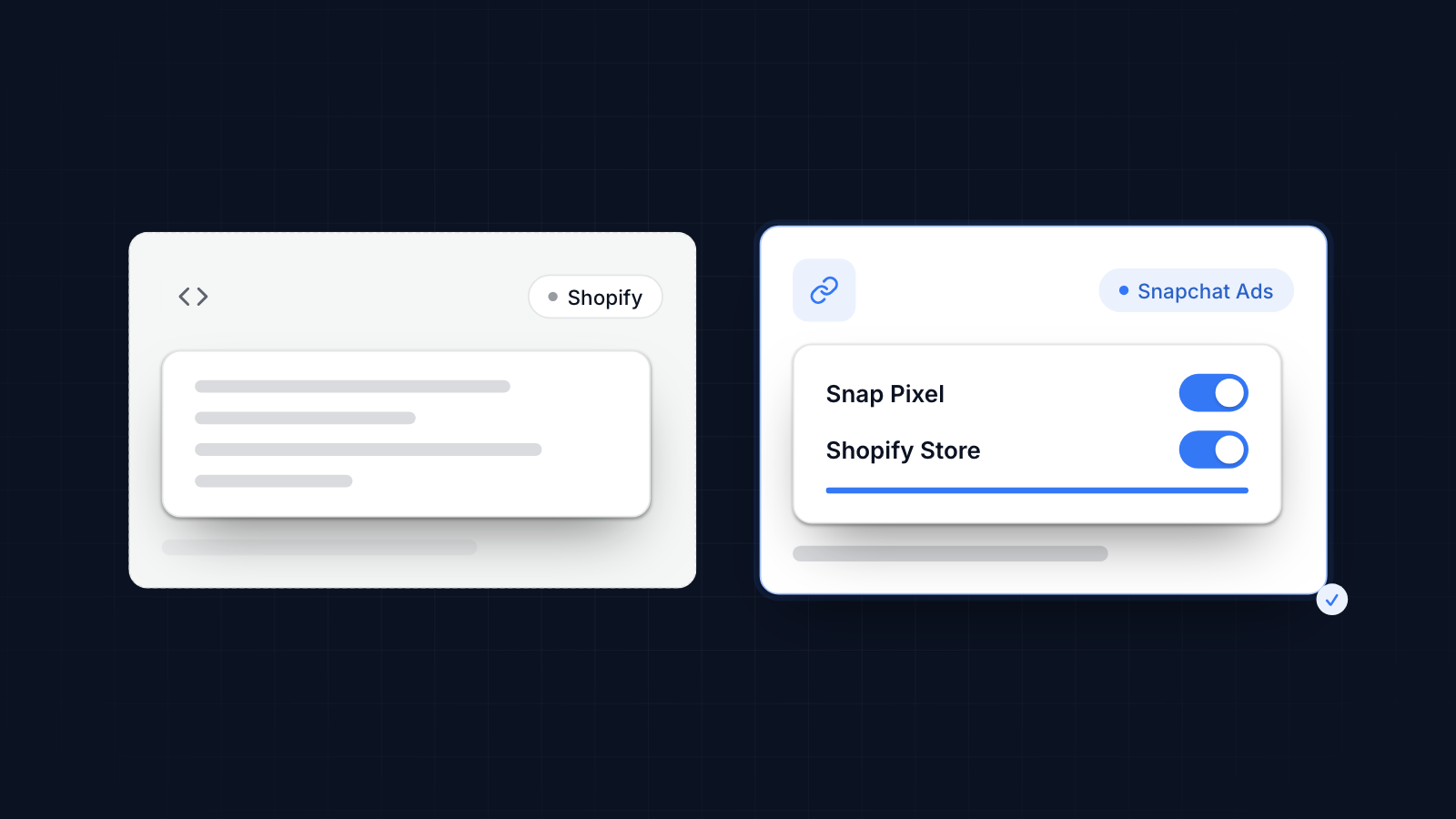
- In your Shopify admin, install the Snapchat Ads app from the Shopify App Store.
- Log in with your Snapchat Business account and choose your ad account.
- Select the pixel you created, or let the app create one.
- Finish the setup. The app adds the pixel to your store and sends the standard shopping events.
Do not also paste the pixel code into your theme. Theme code does not run on Shopify's checkout, and a second copy of the pixel sends every event twice.
Step 3: Verify Pixel Installation
Check that events arrive before you rely on them.
- Open Events Manager in Snapchat Ads Manager and select your pixel.
- Visit your store, view a product and add it to your cart.
- Watch for the events to appear. They can take a little while to show.
- Place a test order and check that the purchase event arrives.
You can also install the Snap Pixel Helper Chrome extension. It shows whether the Snapchat pixel loads on each page and which events fire.
Add Snapchat Pixel to Shopify Using a Third-Party App
A pixel app is the other no-code option, and the better one if you run several ad platforms or need more than one pixel.
Choices include:
- Snapchat Ads (Snap's official app).
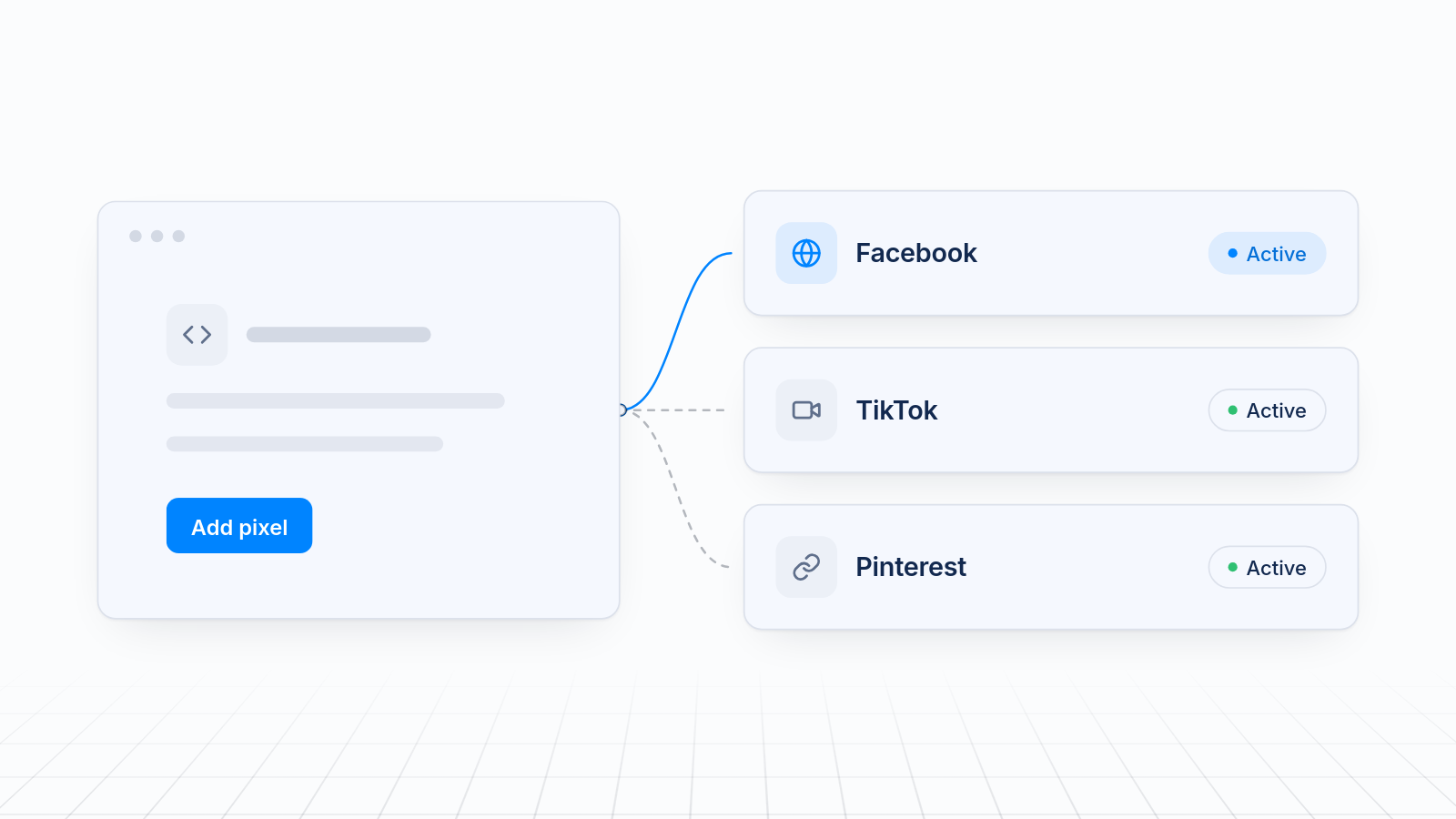
- MultiPixels, which installs Snapchat alongside Meta, TikTok, Pinterest and GA4 pixels from one dashboard, and backs up your settings.
Apps like these send the standard events, such as product views, add to cart, checkout started and purchases, and some send extra events like searches.
Advanced users can also add the Snapchat pixel as a custom pixel in Shopify, under Settings > Customer events. That needs some JavaScript and testing, so an app is easier for most stores.
Snapchat also has a Conversions API, which sends events from a server so ad blockers and browser privacy settings cannot stop them. Check whether the app you use supports it. If it does not, a server-side tracking app or setup can add it.
Common Issues and How to Troubleshoot Snapchat Pixel on Shopify
Most problems come from the pixel ID, duplicate installs or timing.
1. Pixel Not Firing at All
Check that the app is connected to the right pixel and that the pixel ID matches the one in Events Manager. Test in a private browser window with ad blockers turned off.
If you used custom code, check it for typos and make sure it runs on every page.
2. No Data Appearing in Snapchat Ads Manager
Events can take a while to show, sometimes several hours. Make sure the store has had visits since you connected the pixel: browse it yourself on mobile and desktop, then check Events Manager again.
3. Duplicate Pixel Events
If you installed the pixel in more than one way, such as the Snapchat Ads app plus theme code or a second app, every event may be counted twice. Pick one method and remove the others.
4. Pixel Firing on the Wrong Pages
If events fire where they should not, such as purchase events on non-order pages, the cause is usually custom code. Use an app that sends the standard events on the right pages, or limit custom events to specific actions.
5. Compatibility with iOS and Ad Blockers
Browser privacy settings, iOS limits and ad blockers stop the pixel for some visitors. You cannot avoid that fully, but sending events from a server through the Conversions API recovers many of them.
Best Practices for Snapchat Pixel Shopify Integration
A few habits keep your Snapchat data useful.
1. Use Standard and Custom Events
Track Snapchat's standard events: page view, view content, add to cart, start checkout and purchase. Purchases matter most. Add custom events, such as sign-ups, only if you will use them.
2. Avoid Multiple Pixel Installations
Use one installation method: Snap's app, a single pixel app, or custom code. Never a mix.
3. Optimize for Conversions
In Ads Manager, optimize campaigns for purchases or add-to-carts rather than clicks, so Snapchat shows your ads to people likely to buy.
4. Create Lookalike and Retargeting Audiences
Once the pixel has collected enough data, build audiences of past visitors to retarget, and lookalike audiences based on your buyers.
5. Use UTM Parameters for Deeper Insights
Add UTM parameters to your Snapchat ad links, so the traffic shows up by campaign in GA4 and in Shopify's reports. Compare that with Snapchat's own figures.
6. Keep Up With iOS Privacy Updates
Apple's App Tracking Transparency and similar privacy changes reduce what pixels can record on iPhones. Watch your iOS results and consider server-side events if they drop.
If you also advertise on other platforms, MultiPixels installs Meta, TikTok, Pinterest, Snapchat and GA4 pixels on a Shopify store without editing theme code. Install MultiPixels on your Shopify store to run several tracking pixels at once.